
Report Builder for ArcGIS is provisioned via the ArcGIS Marketplace.
Step 1
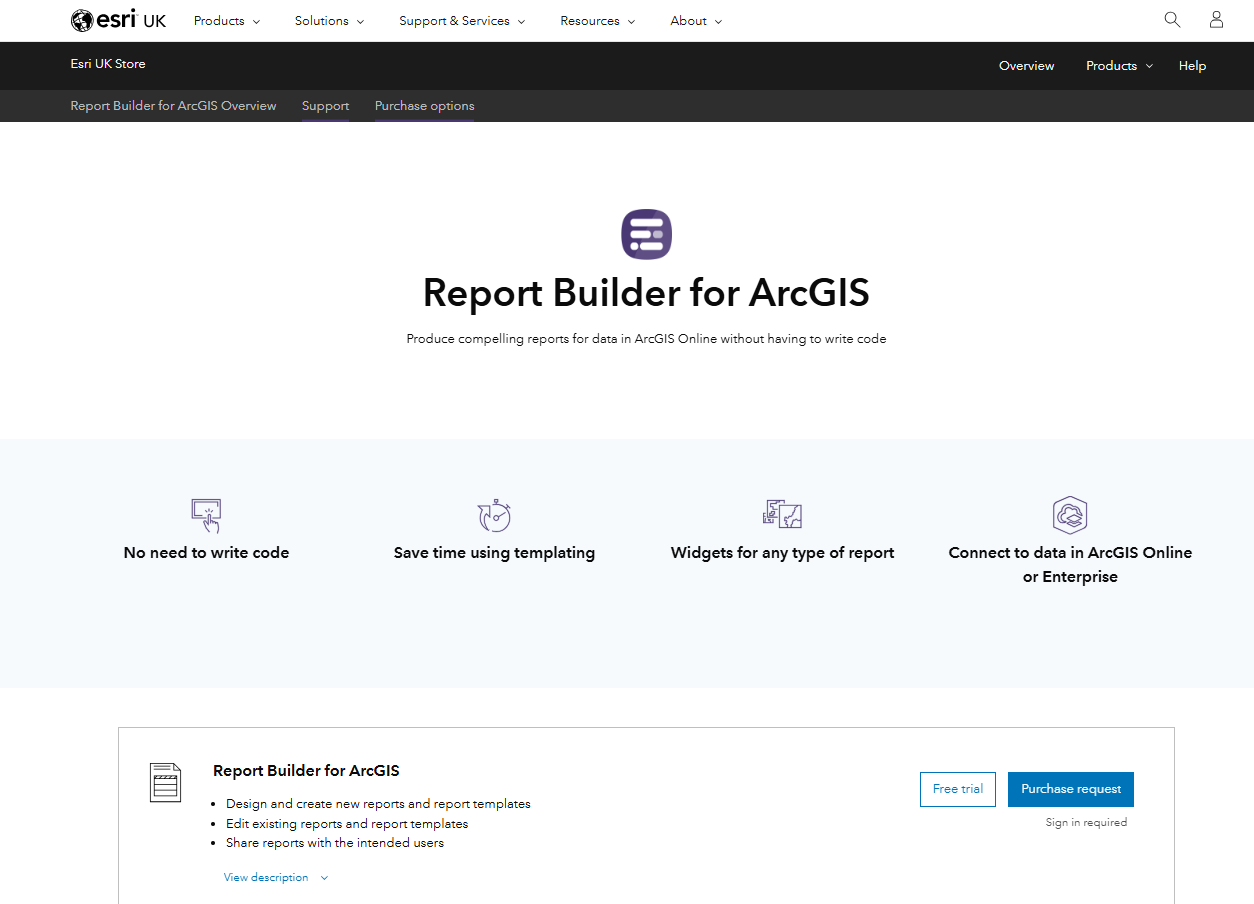
Browse to the listing in the Esri UK Store and click the Purchase request button. Note that no payment is required in the Esri UK Store.
Step 2
Sign in with an ArcGIS Online user with the Administrator role.
Step 3
Fill in the form, read the T&Cs and submit your request.

Step 4
When your purchase request has been approved, you will receive an email from Marketplace. Sign in to ArcGIS Online with an administrator user.
Step 5
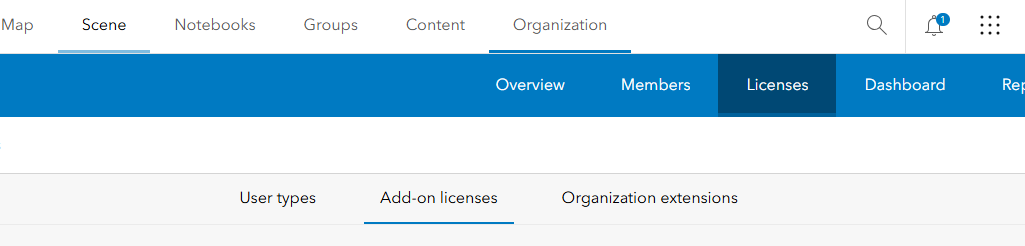
Under Organization, click Licenses and ensure you are on the Add-on licenses tab.
In the Applications group, find Report Builder for ArcGIS and click the Manage button.
Step 7
Assign the license(s) to user(s) using the toggle buttons on the right.
Step 8
Once this as been done, the user will be able to access Report Builder via the Quick Launch option when they sign into ArcGIS Online.

If you experience any problems accessing Report Builder, please view the FAQ. If this does not resolve the problem, please contact our helpdesk.